2. Pages and layout
Edit a page, add sections, pick a design, and publish.
Find your pages
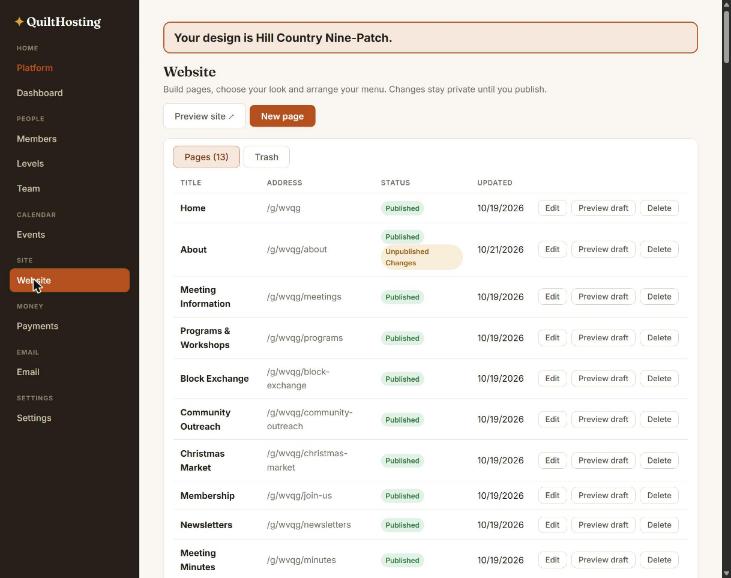
Open Website. The Pages list shows every page with its address, status and last-updated date. Each row has Edit, Preview draft and Delete. New page adds one.
A status of Published · Unpublished Changes means the live page is older than your draft. Visitors still see the old one.
Edit a page
- Click Edit on the page.
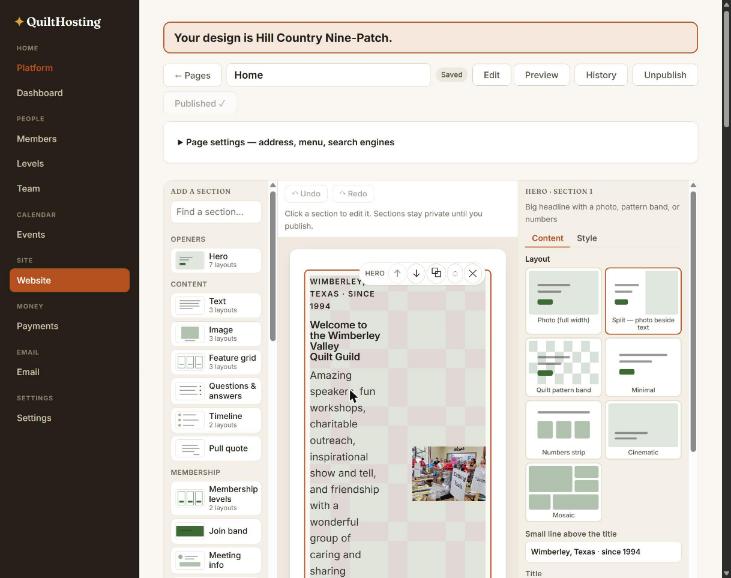
- A page is a stack of sections in the middle. Click one to select it. A small bar floats above it with ↑ and ↓ to move it, a copy button, and ✕ to delete it.
- The panel on the right says Section settings and has two tabs: Content for the words and Style for background, width, spacing and which side the picture sits on.
- Type your changes. They save as a draft automatically.
- Press Preview to see the draft as a visitor would. Undo and Redo sit above the page. A small Saved tag by the title tells you your draft is stored.
- Press Publish when it looks right.
Who can see a page: public or members only
Every page on a guild site is public by default. Some guilds keep certain pages — minutes, bylaws, a directory, newsletters — for members only. You choose this one page at a time.
- Open the page with Edit.
- Open Page settings — address, menu, search engines at the top of the editor.
- Tick Members only.
- Press Publish.
| Who | What they get |
|---|---|
| A visitor who is not signed in | A short “Members only” page with a sign-in button. They do not see the page’s content. |
| A signed-in member | The page, listed under Guild Info in the member portal. |
A page set to Members only is also left out of search engines and the automatic menu. The Website list marks it with a Members only badge, so you can see at a glance which pages are locked.
Check it the way a visitor would: open the page’s address in a private window. You should see the sign-in page, not the content. Untick Members only and publish to make it public again.
Add a section
Press Add a section. They are grouped: Openers (Hero), Content (Text, Image, Feature grid, Questions & answers, Timeline, Pull quote), Membership (Membership levels, Join band, Meeting info, Officers & board, Benefits), Events, Community (Photo gallery, News & newsletter, Sponsors), and more.
Some sections have several looks — Hero has seven. Pick the look under Layout on the Content tab. Find a section… at the top of the list searches by name.
Your safety net
| Button | What it does |
|---|---|
| Discard draft | Throws away your unpublished edits. The live page is untouched. |
| History | Restores an earlier published version. |
| Unpublish | Takes the page off the site without deleting it. |
| Delete | Moves the page to Trash. You can restore it. Links to the old address keep working. |
Change the design
A design sets colors, fonts, spacing and layout in one go. Your pages, words, photos and menu are not touched.
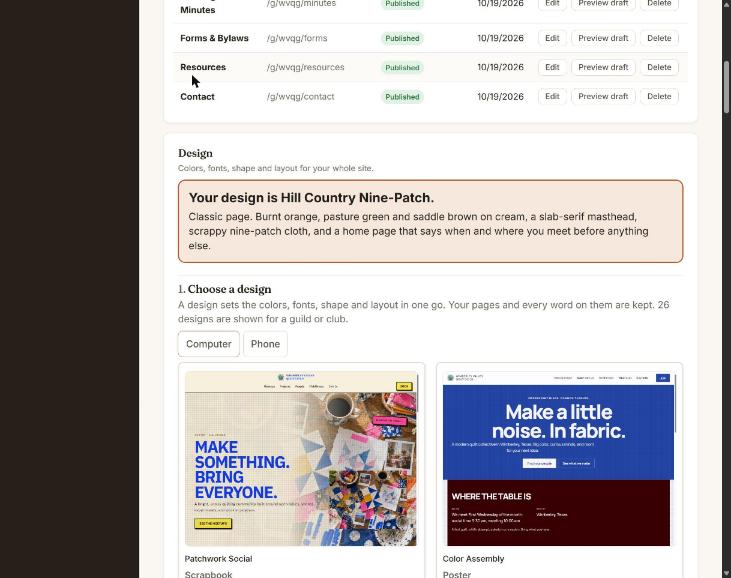
- Website → scroll to Design.
- Click a card to See example — that is the design’s own sample site. Nothing is saved.
- Press See my site to see your Home page in that design. This is the one that shows what you will get.
- Happy? Press Use this design, then confirm.
- If your site already has its own pages, the confirm step also offers Use it and try its layout on my Home page. That writes the design’s Home layout as a draft of your Home page — nothing goes live until you publish it.
Want to fine-tune? Customize appearance has colors, page background, fonts, corners, header, footer and a quilt-block pattern. Restore this design’s defaults undoes all of it.
Arrange the menu
- Website → Site menu.
- Pick a page (or a web link) for each slot. Use ↑ and ↓ to reorder, ✕ to remove.
- Press Save menu. Once you save your own menu, nothing is added to it for you.
Make a dropdown menu
A dropdown is a menu item that opens a short list when a visitor points at it — Meetings opening Calendar, Programs, Workshops and Block exchange. You can make one under any menu item.
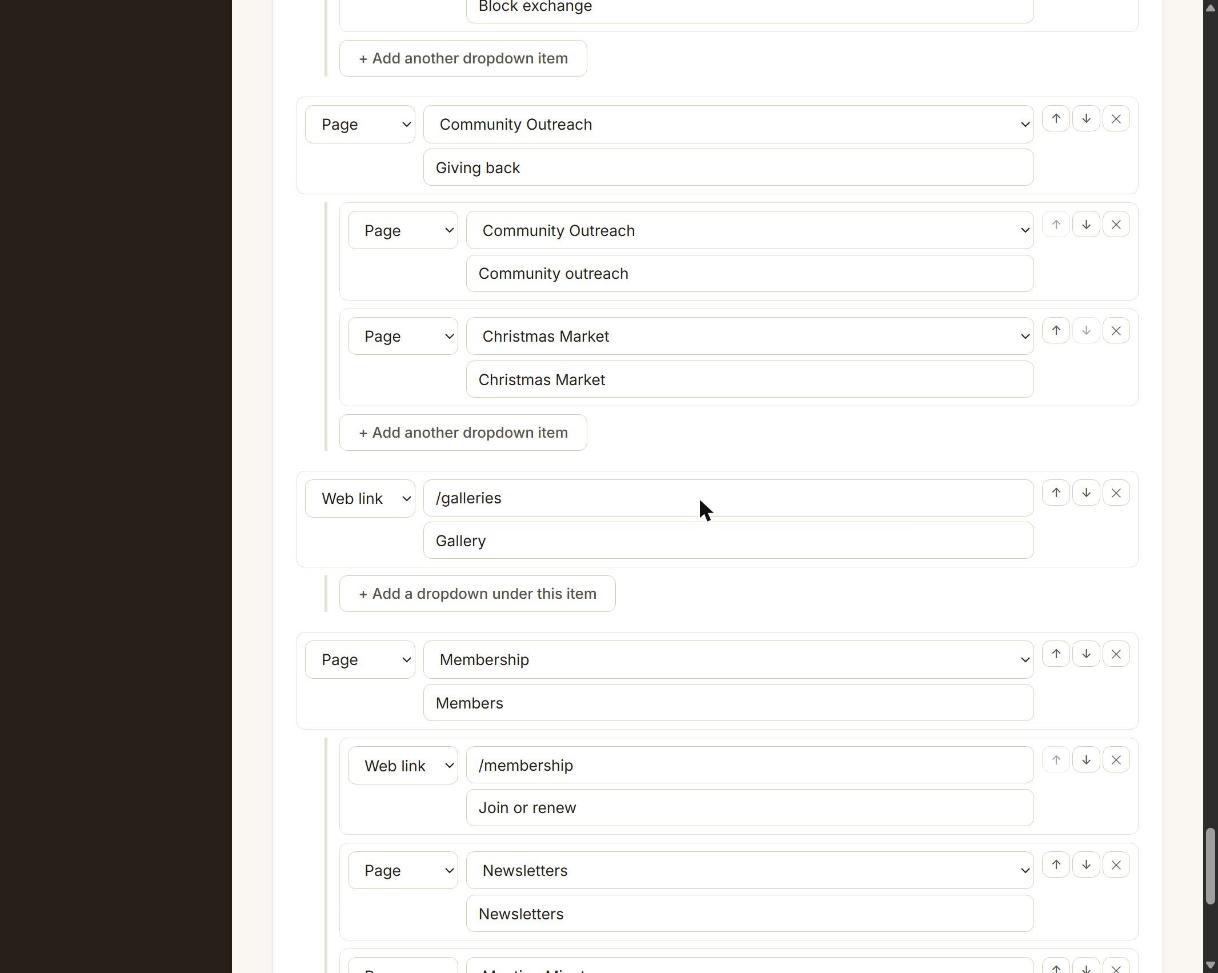
- Website → scroll to Site menu. Each menu item is a row. A dropdown shows as indented rows underneath its item.
- Under the item you want to open a list — say Gallery — press + Add a dropdown under this item. A new indented row appears.
- Choose Page and pick the page from the list, or Web link for a section of a page (like
/about#history) or another website. - Type the label visitors will read.
- Press + Add another dropdown item for each one after that.
- Press Save menu at the bottom. Nothing changes on the site until you do.
The ↑ and ↓ move a row inside its dropdown. The ✕ on a dropdown row removes just that row. The ✕ on the main item removes the item and its whole dropdown. A dropdown holds up to 20 items, and a dropdown item cannot have a dropdown of its own.
If it goes wrong
| You see | Do this |
|---|---|
| You changed a design but the words are the same | Right — a design never touches your words. Edit them in the page editor. |
| “Publish” stops and names a page | That page still has “Sample text — replace me”. Press Replace the sample text and write over it. |
| Your edit is not on the site | It is a draft. Press Publish. |
| You picked the wrong design | Press Use this design on another one. Or Restore this design’s defaults. Nothing of yours is lost. |