6. Email and your team
Send a newsletter, and give another officer their own login.
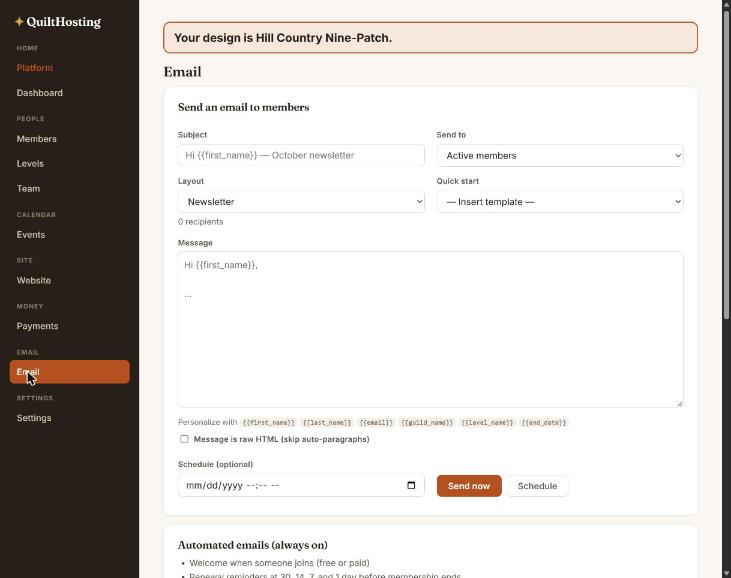
Send a newsletter
- Email in the sidebar.
- Choose Send to: Active members, a level, a group, or Everyone except cancelled. The count underneath tells you how many people will get it, and how many are left out for opting out.
- Pick a Quick start template if you want one: monthly newsletter, event invitation, renewal nudge, welcome note.
- Write the Subject and Message. Each line becomes a paragraph.
- Press Send now, or pick Schedule and set a time.
There is no test send. Send your first one to a small group — your own board — before the whole guild. View on a sent email shows exactly what went out.
Make it personal
| Type | Becomes |
|---|---|
{{first_name}} | Their first name, or “there” if blank. |
{{guild_name}} | Your guild’s name. |
{{end_date}} | Their renewal date. Only when you send to a level. |
An unsubscribe line is added to the bottom automatically.
Replies do not reach you
Emails come from QuiltHosting’s sending address. Put your own contact email in the message if you want answers.
Groups
A group is a label for a set of people — the board, a bee, the Christmas Market committee. Create one on the Email screen, or tick groups on a member. Then send to the group.
Add another officer
You should not be the only person who can sign in.
- Team in the sidebar.
- Under Invite a co-admin, type their Google email address, choose a role, and press Invite.
- They are added at once and get an email. They sign in with Google using that address. There is no invitation to accept.
| Role | Good for |
|---|---|
| Owner | The person ultimately responsible. Full access. |
| Admin | Officers who run everything. |
| Membership chair | Members, levels, dues, email. |
| Events chair | Events and galleries. |
| Viewer | Looks, cannot change. |
Remove someone the day they leave the board. They can keep using a session they already have for up to 7 days.
If it goes wrong
| You see | Do this |
|---|---|
| Members did not get the newsletter | Check the recipient count. Anyone who unsubscribed or whose address bounced is left out. The Recent emails table shows each one’s status. |
| Send shows Partial | Press Retry failed. It re-sends only to the ones that failed. |
| An officer sees a grey, read-only screen | Their role cannot change that area. An owner or admin can change the role in Team. |
| Wrong person added to Team | Remove that row. Nothing expires; there is nothing to cancel. |